Before you begin
Sign in, connect, and prepare your inputs
Sign in with Google to start the free 3-day trial. After the trial, a monthly or annual subscription is required to continue using the app. During the trial, each print or save action for the Technical Proposal, BOQ, and Financial Report has its own three-use allowance.
Entering project and site information works offline, but running the sizing calculation requires an internet connection. The app sends the design inputs to its sizing service and returns the calculated results.
Keep your projects backed up. Saved designs, company details, custom equipment, and pricing are stored on the device. Use Designs → Export JSON to move a project to another phone or share it. Equipment lists can be exported and imported as CSV.
01
Project
Enter a project name and client/site location. Select the market or country to load the matching currency, tariff and VAT defaults, cable standards, and regulatory notes. Enter your company name, tagline, address, and phone number for branded reports; the company profile is remembered on this device.
Country-specific regulatory content is informational. Confirm current local requirements with the relevant authority and qualified professionals.
02
Loads
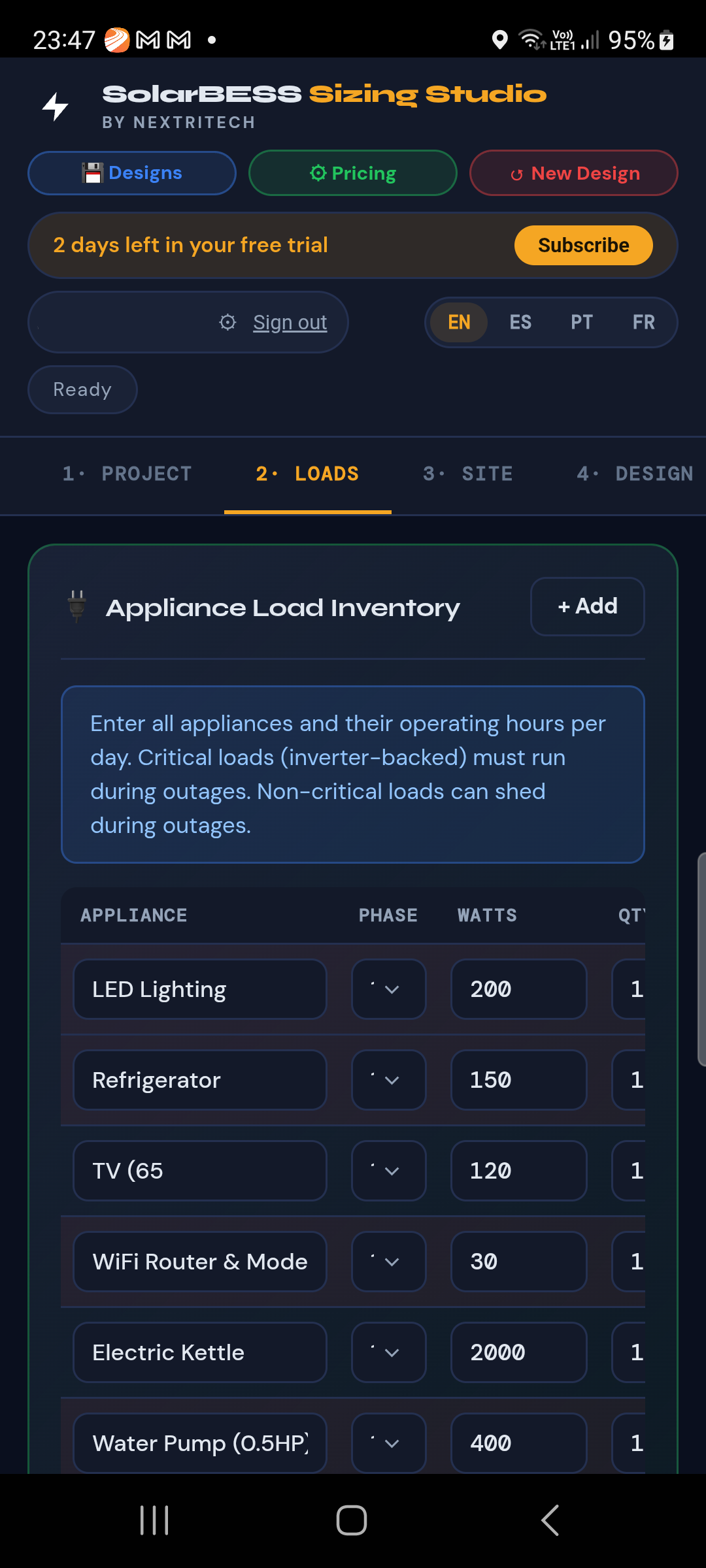
Add appliances with their phase, wattage, quantity, and hours of use per day. Mark a load Critical if it must continue during an outage. Residential and Commercial templates provide a starting list. The load summary updates daily energy, critical energy, and peak demand as you edit.
Mark only essential outage loads as Critical. This value affects battery backup sizing and can change the proposed bank substantially.
03
Site
Enter solar resource and installation details such as peak sun hours, panel tilt and orientation, shading, temperatures, altitude, and mounting type. These values affect PV yield and related equipment sizing. Battery-only designs can skip solar-specific site inputs.
04
Design
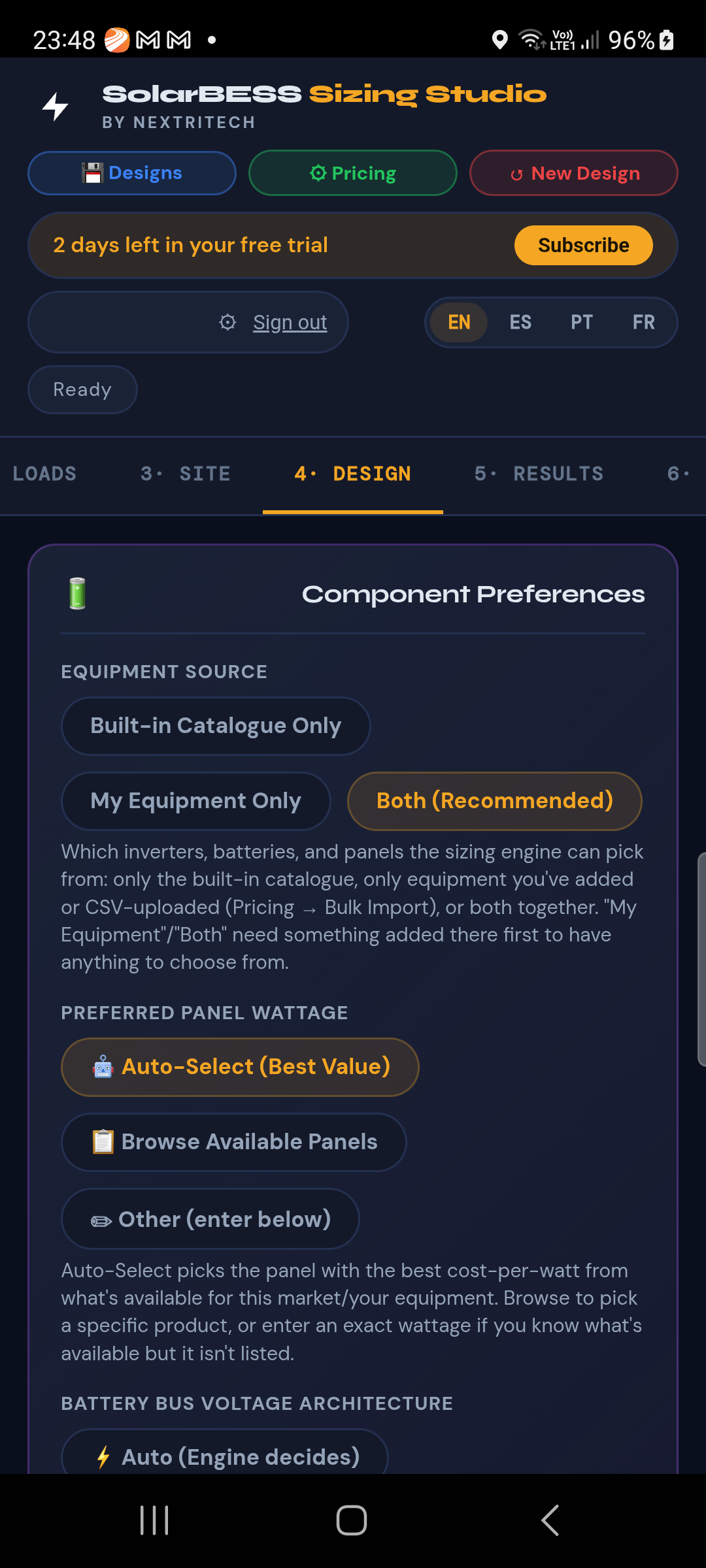
Choose system configuration, component preferences, battery chemistry and voltage, autonomy, sizing basis, inverter strategy, and cable lengths. Use measured cable routes where available so the BOQ is closer to the installation.
Equipment Source controls whether the app selects from its built-in catalogue, your custom equipment, or both. For panels and battery units, you can use Auto-Select, browse listed products, or enter a custom value. Select a specific uploaded PV panel when its datasheet details should be used.
The Pricing panel has downloadable CSV templates for equipment and BOQ items. Add entries manually or import a completed template; then select My Equipment or Both here to use your local library.
05
Results
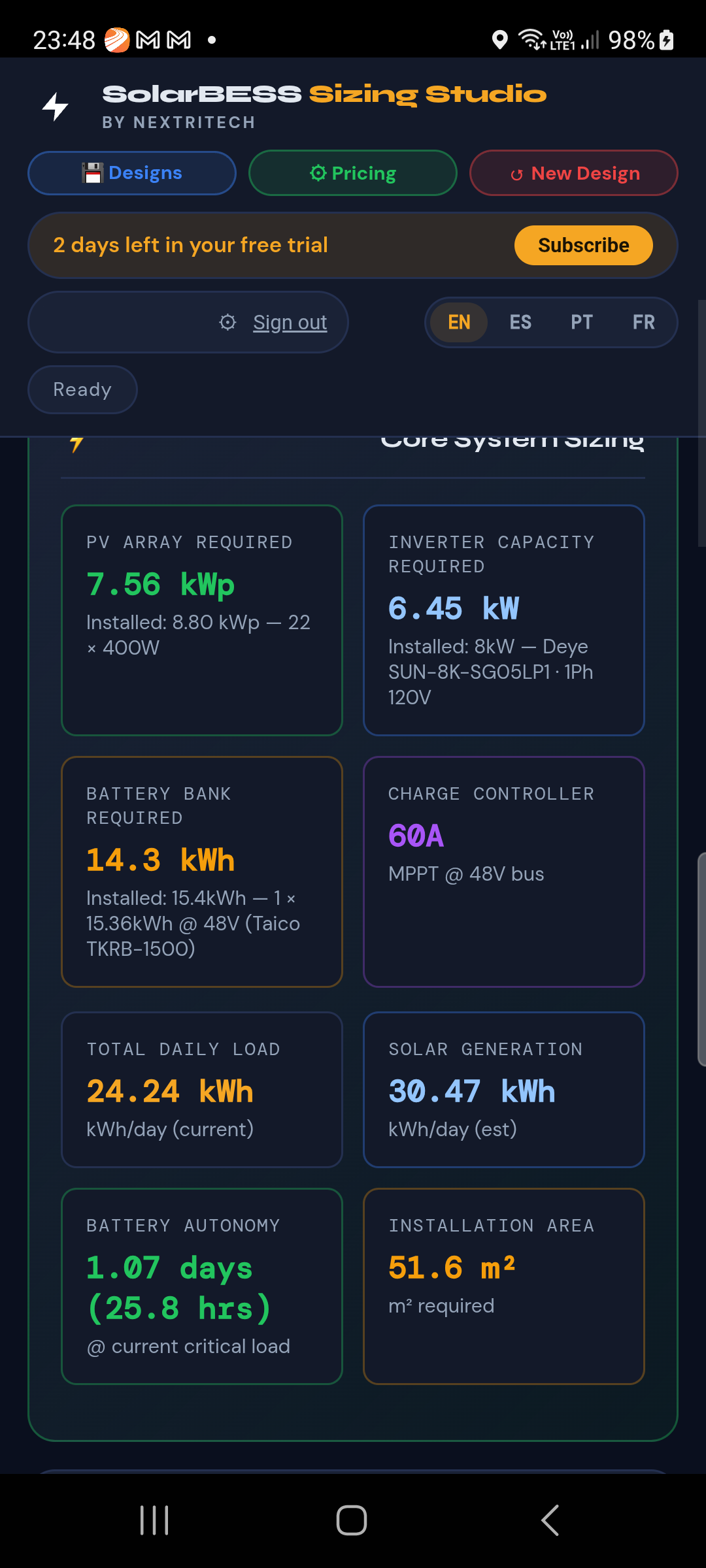
Tap Run Design Engine while online. Review the proposed PV capacity, inverter, battery bank, expected generation, autonomy, and installation area. The app checks battery sizing constraints and shows the sizing basis and selected equipment. Single-line and battery-topology diagrams update with the design.
Treat the output as a design aid. Check the assumptions, site conditions, equipment datasheets, and applicable electrical codes before specifying or installing a system.
06
BOQ
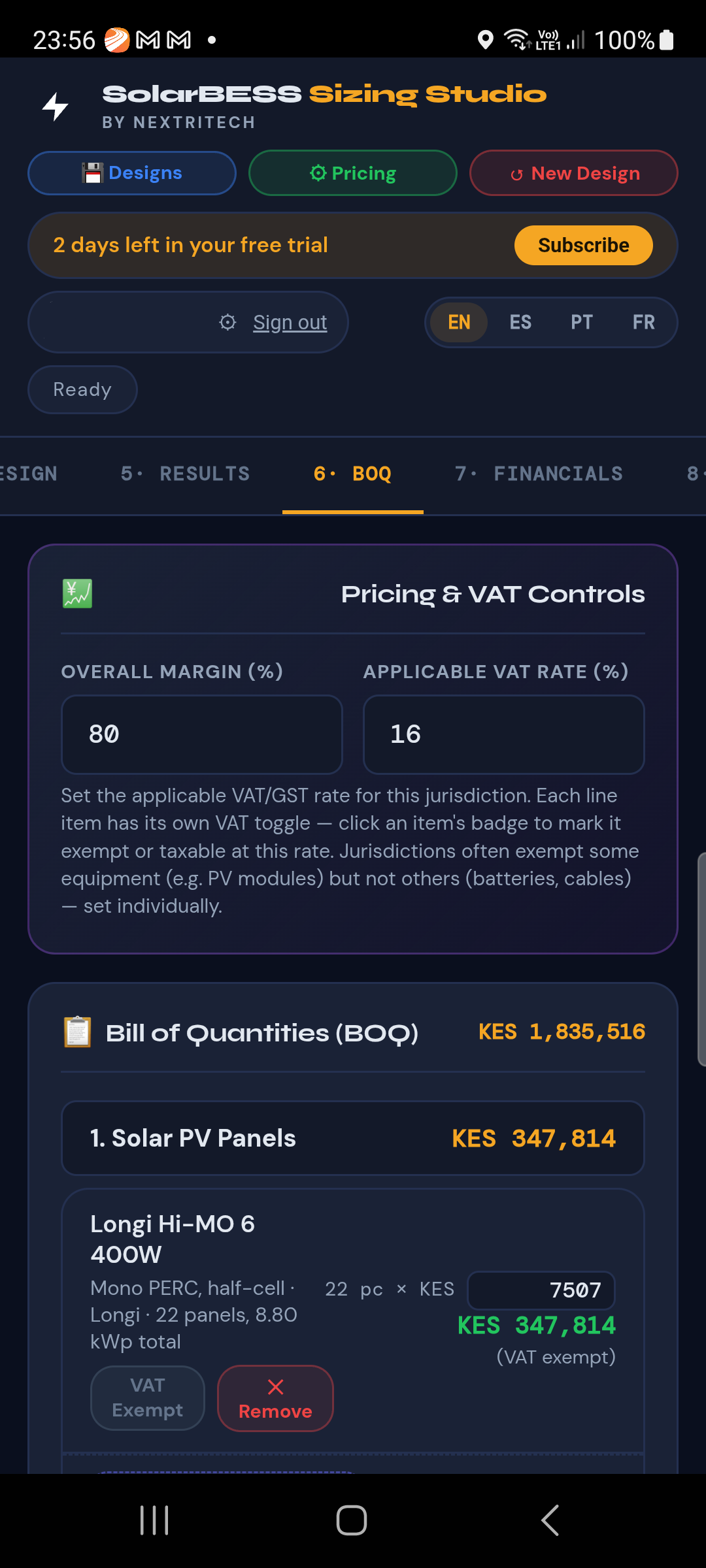
Review the itemized Bill of Quantities and totals. Adjust the overall margin, labor and design fees, and applicable VAT rate. Each line can have its VAT status changed; you can edit unit cost, remove a line, or add a custom item.
After you edit a BOQ line, the app preserves your changes instead of silently rebuilding the list. Use Regenerate BOQ when you want a fresh list from the current system design.
07
Financials
Review the modeled annual savings, payback, 25-year net present value (NPV), internal rate of return (IRR), and CO₂ offset. Results depend on the BOQ total, selected market tariff, and financial assumptions such as discount rate, tariff escalation, and self-consumption.
These are projections based on entered assumptions, not a guarantee of energy production, savings, payback, or investment performance.
08
Export
Print or save and share three PDF documents: the Technical Proposal, BOQ/cost estimate, and Financial Analysis report. Reports use the company details entered in Project. Saved files are placed in Downloads/Nextritech/SolarBESS Sizing Studio.
Each print or save action has its own three-use trial allowance. Check the app’s subscription screen for current plan details.
09
Documents
Open or download the Terms & Conditions, Privacy Policy, and User Manual from inside the app. The documents offer English, Spanish, Portuguese, and French versions. A language selector in the app header changes the interface language.
Quick help
Common questions
The calculation will not run
Check the internet connection and selected market, then try the sizing calculation again. The calculation engine runs on the service, while project entry can continue offline.
My project is missing on another device
Projects do not automatically sync. On the original device, open Designs and export the design JSON. Transfer that file, then use Import JSON on the other device.
My equipment list is missing on another device
Custom equipment is saved on the device where it was entered. Export the equipment list as CSV, transfer the file, and import it in Pricing on the other device.
The BOQ or a report does not reflect an edit
Return to the relevant step and confirm the edited values. If you changed the BOQ manually, those edits are preserved; use Regenerate BOQ only when you want to replace them.